

Chưa có sản phẩm trong giỏ hàng.
How to Hide WooCommerce Sticky Header in “Edit Product” (Fix UX Issues)
How to Hide WooCommerce Sticky Header in “Edit Product” Pages to Fix UX Frustrations
If you are managing an e-commerce store, you know that efficiency is everything. However, a recent update has introduced a layout change that many users are finding incredibly frustrating. We are talking about the floating top bar in the backend product editor. In this comprehensive guide from nxtt’blog (nxtt.io.vn), we will show you exactly how to hide WooCommerce sticky header elements that are obstructing your workflow.
The latest iteration of the WooCommerce platform fixed the “Edit Product” header to the top of the screen. While this might have been intended as a modern UI improvement, it created a massive UX nightmare: it covers the Classic Editor toolbar. This means every time you want to hit the “Add Media” button or format your text, you are forced to scroll all the way back to the top of the page. It disrupts your flow and costs you time.
Today, we will solve this specific WooCommerce edit product layout issue by adding a simple, effective code snippet to your theme files.
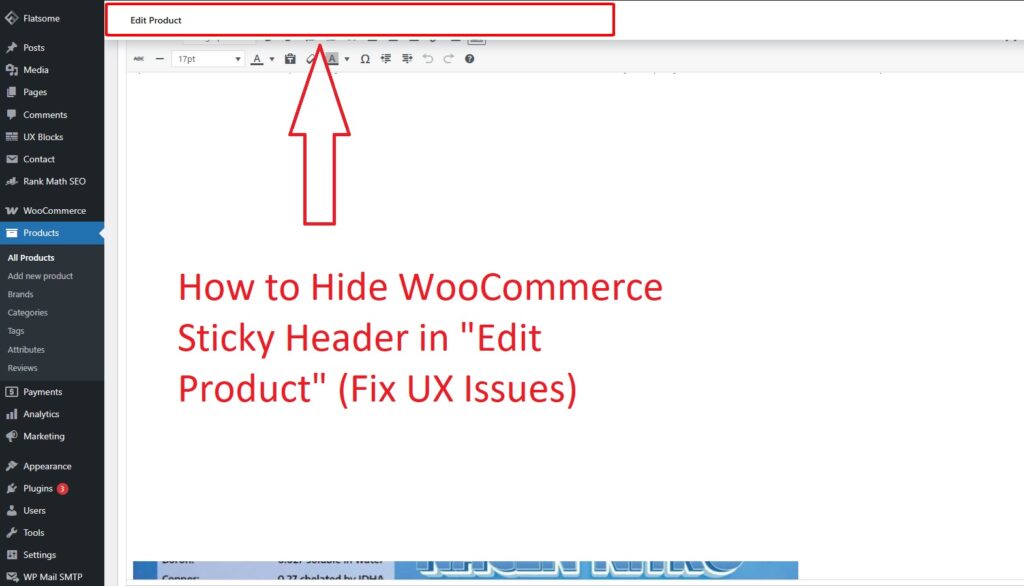
The UX Nightmare: Why This Update Is So Annoying
User Experience (UX) design is about reducing friction, but unfortunately, this update has increased it. When you are writing product descriptions, you need constant access to your formatting tools.
Imagine you are deep in the middle of writing a description for a new product. You scroll down to check the “Short Description” or adjust the “Product Data.” Suddenly, you need to insert an image or bold a sentence. You look up, and your toolbar is gone—hidden behind a white, persistent bar that tells you the product name (which you already know).
This is one of the most glaring WooCommerce interface problems in recent memory. By forcing the header to stick to the top, WooCommerce inadvertently overlaid the tools creators use most. The result? A disjointed editing experience where you are constantly scrolling up and down just to perform basic tasks. This repetitive action leads to “scroll fatigue” and inefficiency.
At nxtt’blog, we believe your dashboard should work for you, not against you. That is why we are removing this barrier.
The Solution: Hiding the Header via functions.php
To hide WooCommerce sticky header functionality, we don’t need heavy plugins or complex reconfiguration. We can utilize the power of the WordPress hook system. By injecting a small piece of CSS into the administrative header, we can override the styles responsible for this floating annoyance.
We will be adding a code snippet to your active theme’s `functions.php` file. If you are not familiar with PHP or modifying theme files, don’t worry—we will walk you through every step of the process.
Prerequisites Before You Begin
Before editing any code on your website, it is standard procedure to follow these safety steps:
- Backup Your Site: Always ensure you have a recent backup of your site in case of a syntax error.
- Use a Child Theme: It is highly recommended to remove WordPress admin bar CSS conflicts via a Child Theme. If you edit the main theme, your changes will be lost the next time the theme updates.
Step-by-Step Guide to Hide the Sticky Header
Step 1: Access Your Theme File Editor
Log into your WordPress Dashboard. Navigate to the left-hand sidebar, find Appearance, and click on Theme File Editor. If you are using a block theme, this might be located under Tools or require access via FTP (File Transfer Protocol).
Step 2: Locate the Functions File
On the right side of the screen, you will see a list of files associated with your theme. Look for the file labeled Theme Functions (usually named `functions.php`). Click on it to open the editor.
Step 3: Insert the Code Snippet
Scroll to the very bottom of the `functions.php` file. You will paste the code provided below. This code targets the specific CSS class `.woocommerce-layout__header.is-scrolled` which is responsible for the sticky effect, and applies a `display: none` property to it.
Additionally, the code adjusts the background color of the editor tools to ensure it looks clean once the header is removed. Here is the code from nxtt’blog:
add_action(‘admin_head’, ‘hide_header_woo’);
function hide_header_woo(){
?> <style> .woocommerce-layout__header.is-scrolled { display: none; }
#wp-content-editor-tools {background: #f6f7f7 ;}
</style>
<?php }
Step 4: Save and Test
Click the “Update File” button. Once the file is saved, open one of your existing products in WooCommerce (or create a new one). Scroll down the page. You will notice that the hide WooCommerce sticky header script is working perfectly—the annoying top bar no longer covers your content editor, and the “Add Media” button remains accessible or scrolls naturally without obstruction.
Analyzing the Code: How It Works
Let’s break down exactly what this snippet is doing to fix the WooCommerce edit product layout.
- `add_action(‘admin_head’, …)`: This is a WordPress hook that tells the system to execute our function within the `<head>` section of the dashboard admin pages. This ensures our CSS is loaded when the admin panel loads.
- `.woocommerce-layout__header.is-scrolled`: This is the specific class selector WooCommerce applies when you start scrolling. By setting this to `display: none !important;`, we are forcing it to vanish completely rather than float over your work.
- `#wp-content-editor-tools`: When we remove the header, sometimes the visual separation is lost. We added a background color adjustment (`#f6f7f7`) to ensure the tool area remains distinct and visually pleasing.
Why UI/UX Tweaks Matter for E-Commerce
You might wonder why such a small change is worth a 1,500-word discussion. In the world of E-commerce, workflow optimization is direct money. The more time you spend fighting your interface, the less time you spend marketing or selling.
The default WooCommerce edit product layout recently tried to modernize by mimicking SaaS (Software as a Service) platforms that use persistent headers. However, unlike a dedicated app, WordPress operates on a combination of different meta-boxes and editors. The fixed header behaves like an overlay, or a “z-index” intrusion, sitting on top of the elements you actually need to click.
By using the method to remove WordPress admin bar CSS styles that relate to this sticky header, you are reclaiming your screen real estate. This is particularly vital for users on smaller laptop screens where every pixel counts.
Addressing Common WooCommerce Interface Problems
This sticky header issue is just one symptom of larger WooCommerce interface problems that occur when legacy systems (like the Classic Editor) clash with modern interface updates (like the Gutenberg block logic or the new Woo admin UI).
Often, developers assume everyone is using the block editor, where a sticky toolbar might make sense. However, for high-volume stores, the Classic Editor often allows for faster data entry. When WooCommerce forces these UI changes, they often break the workflow for power users.
Following nxtt’blog (nxtt.io.vn) allows you to stay ahead of these updates. We analyze these UX failures and provide immediate code solutions so you don’t have to wait for an official patch (which may never come).
Troubleshooting: If the Code Doesn’t Work
If you have applied the code to hide WooCommerce sticky header but the bar still appears, check the following:
- Browser Cache: Your browser might be remembering the old CSS. Try doing a “Hard Refresh” (Ctrl + F5 on Windows, Cmd + Shift + R on Mac).
- Plugin Conflict: Some admin-theme plugins might be overriding your custom CSS styles.
- Typo in Code: Ensure you copied the snippet exactly as shown above, including the opening and closing PHP tags if necessary (though the snippet assumes you are inside a PHP file).
- CSS Specificity: The use of `!important` in our code is deliberate to override inline styles added by JavaScript, but if WooCommerce updates the class names in the future, the code might need adjusting. Check back at nxtt’blog for updates.
Conclusion
The recent WooCommerce update created a genuine usability hurdle by obscuring the “Add Media” and editor buttons. While we appreciate the platform’s attempt to modernize, functionality should never be sacrificed for aesthetics.
By adding this simple snippet to your function file, you have successfully managed to hide WooCommerce sticky header elements, resolving one of the most annoying WooCommerce interface problems of the year. Your editor is now clean, your media buttons are accessible, and your scroll flow is uninterrupted.
We hope this guide helped you restore your productivity. For more tips on optimizing your e-commerce store, managing WooCommerce edit product layout configurations, or advanced WordPress tutorials, keep reading nxtt’blog (nxtt.io.vn). We make the complex simple, one snippet at a time.
Xem thêm:
- Phòng ngủ nổi bật cho nhà phố hẹp nhờ biến tấu cổ điển và cây xanh
- Mẫu tủ đẹp giúp ngôi nhà trở nên phong cách hơn nên biết
- Những điều cần kiêng kị khi sửa nhà đón Tết để tránh hao hụt tài lộc
- Cuộc thi thiết kế nội thất “Nguồn sáng êm dịu kiến tạo không gian”
- Ngắm những căn phòng xinh xắn, độc đáo dành cho trẻ em
